👋 Goodbye Message
The Goodbye Message feature sends a configurable message when someone leaves your Telegram group. It mirrors many options from Welcome Message.
Overview
When enabled, Fren One posts a goodbye based on your template (text, formatting, optional buttons) and your chosen delivery and cleanup options.
Configuration
- Use
/settingsin your chat (or DM with the correct community selected) - Go to 👋 Onboarding → 👋 Goodbye Message, or send
/goodbye_settingsas an admin - Toggle the feature 🟢 Enabled or 🔴 Disabled
Message Customization
- Go to 💭 Message
- Type the Goodbye Message in the Telegram chat.
You can customize your goodbye message with:
- Plain text: Simple goodbye text
- Markdown formatting: Bold, italic, code formatting
- Media: You can drop any Telegram-supported media type to your welcome message. These could be images, videos or gifs.
- Variables Use one or multiple variables in the goodbye message:
{user_mention}- mention link for the user.
{first_name}- user's first name.
{last_name}- user's last name.
{full_name}- user's full name.
{username}- username (if available).
{user_id}- user's ID.
{group_mention}- mention link for this group.
{group_link}- link for this group.
{group_name}- group title.
{group_username}- group username (if available).
{group_id}- group ID.
Goodbye, {username}! 👋
We hope you enjoyed the stay at the {group_name}!
Mode
- Direct message: Send the goodbye in the user’s DM (useful to share some resources to users leaving the group).
- Main chat: Post the goodbye in the group chat.
Users leaving the group will not see the goodbye message. Goodbye message in this mode serves the purpose of notifying other memebers about other users' departure.
If a Telegram user has not previously interacted with the Fren One bot - for example, by completing a DM captcha - the goodbye message will not be delivered, as Telegram bots cannot initiate direct messages with users.
Deletion mode
Control how long the goodbye stays visible:
- After a set amount of time: Remove the message after a configured interval (in seconds)
- On next user join: Remove when the next user joins the group
- Do not delete: Leave the message in place
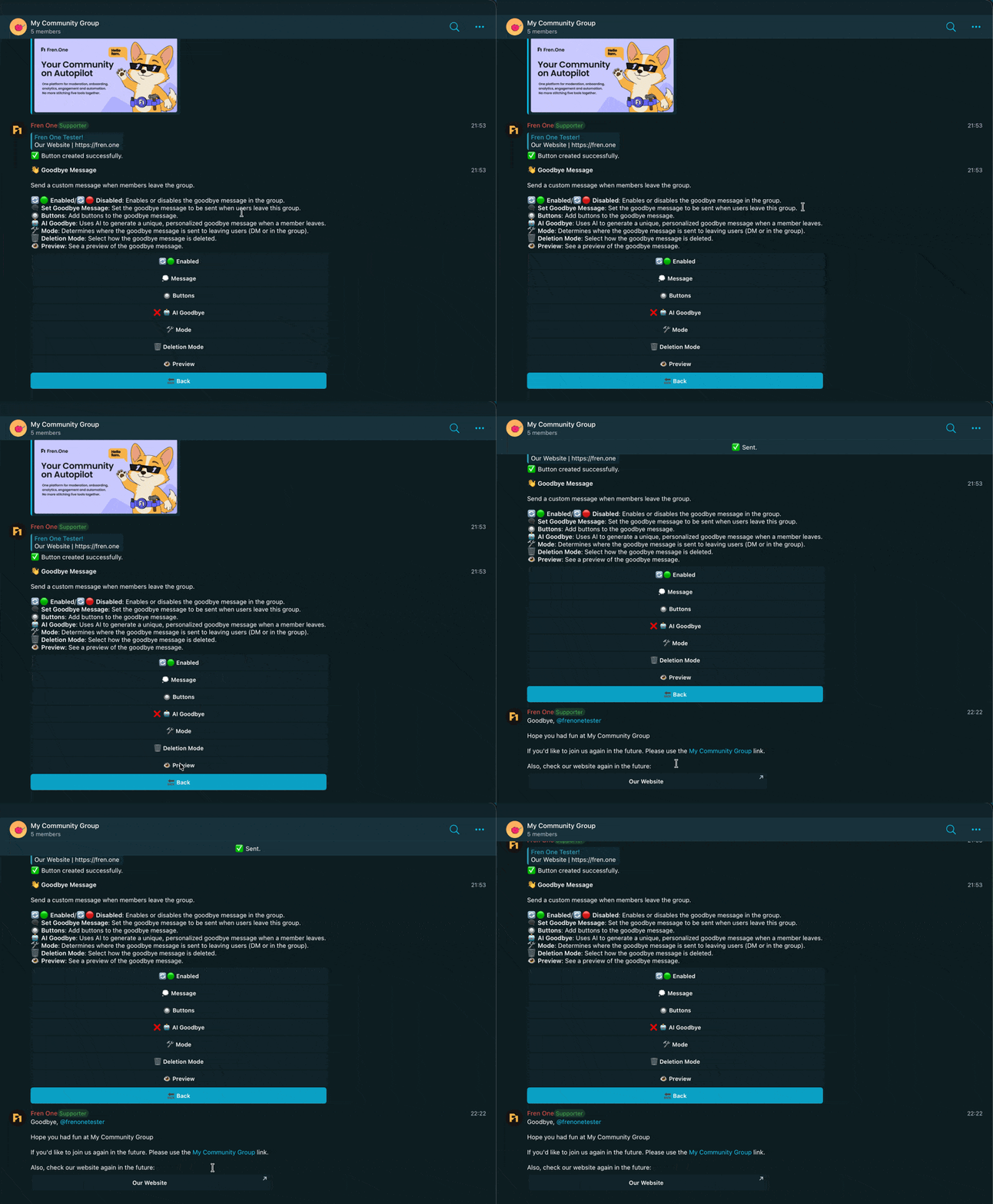
Preview
Use Preview to send yourself a sample before rolling out changes.
Best practices
Even when removing spam accounts, a short neutral goodbye keeps the room professional if the message is visible in the main chat.
If you use Main chat, consider auto-deletion so leave messages do not clutter active conversations.
Troubleshooting
Nothing is sent when users leave?
- Confirm the feature is 🟢 Enabled
- Ensure the bot still has permission to post
Users don't receive DM Goodbye Messages?
- Goodbye message will only be delivered if users have previously interacted with the bot
- Consider switching captcha to DM Mode so that every member of your group interacts with the it