🧩 Captcha
The Captcha Settings menu allows administrators to configure advanced verification methods to ensure only legitimate users join your community.
Overview
When enabled, the Fren One bot will verify all new members using configurable captcha challenges. This helps prevent spam, bots, and malicious users from joining your community.
Configuration
To set up captcha verification:
- Use the
/settingscommand in your chat - Navigate to 👋 Onboarding → 🧩 Captcha
- Toggle the feature 🟢 Enabled to enable captcha verification
- Configure your preferred captcha type and settings
Captcha Type
Choose the type of captcha challenge users will need to solve to verify their humanity. The available options include:
✅ Simple
A basic captcha that asks the user to click a button to verify them.
👋 Hello {name}! Please click the button below to verify you're human.

🔢 Math
A math-based captcha that asks the user to solve a simple arithmetic equation.
🔢 Hello {name}! What is 3 + 7? Please select the correct answer.

😀 Emoji
Users are prompted to select a specific emoji from a set of options.
🔐 Hello {name}! Please click on the BALLOON emoji to verify you're human.

🔤 Text
A harder inline challenge: the bot shows a short string using easy-to-confuse characters, and the user must pick the correct character at a given position (bots struggle; humans usually manage).

⚙️ Custom
Allows community admins to create tailored captcha questions. These questions can include:
- Text-based questions: e.g., "Are you a developer?"
- Image-based questions: e.g., asking users to identify an object in an uploaded image.
- Admins can create multiple-choice buttons and specify which (if any) answer is correct.
Custom captchas are ideal for protecting against flooding
For more information - check the Questions section below ⬇️
🔗 Combo
Turn Combo on to chain two captcha types before a user is verified. The bot shows progress like (1/2) and (2/2) in the message text.
Mini App types have strict pairing rules (enforced in the bot):
- Slider + Custom MiniApp — Allowed. Both run inside the same Telegram Mini App session (slider challenge, then your web questions).
- Snake — Standalone only. It cannot be combined with any other type.
- Classic Custom (inline custom questions) — Cannot be combined with Slider, Custom MiniApp, or Snake.
- Simple / Math / Emoji / Text — Cannot be combined with Mini App types (Slider, Custom Web, Snake).
For ordinary non-Mini App combos (e.g. Math + Emoji), use two types that are both inline challenges.
Advanced captchas (Telegram Mini App)
These types open Fren One’s captcha web app (slider, optional custom web questions, or the snake game). They appear in the captcha type list when the deployment has a captcha web URL configured (or when one of these types is already selected).
| Type | What the user does |
|---|---|
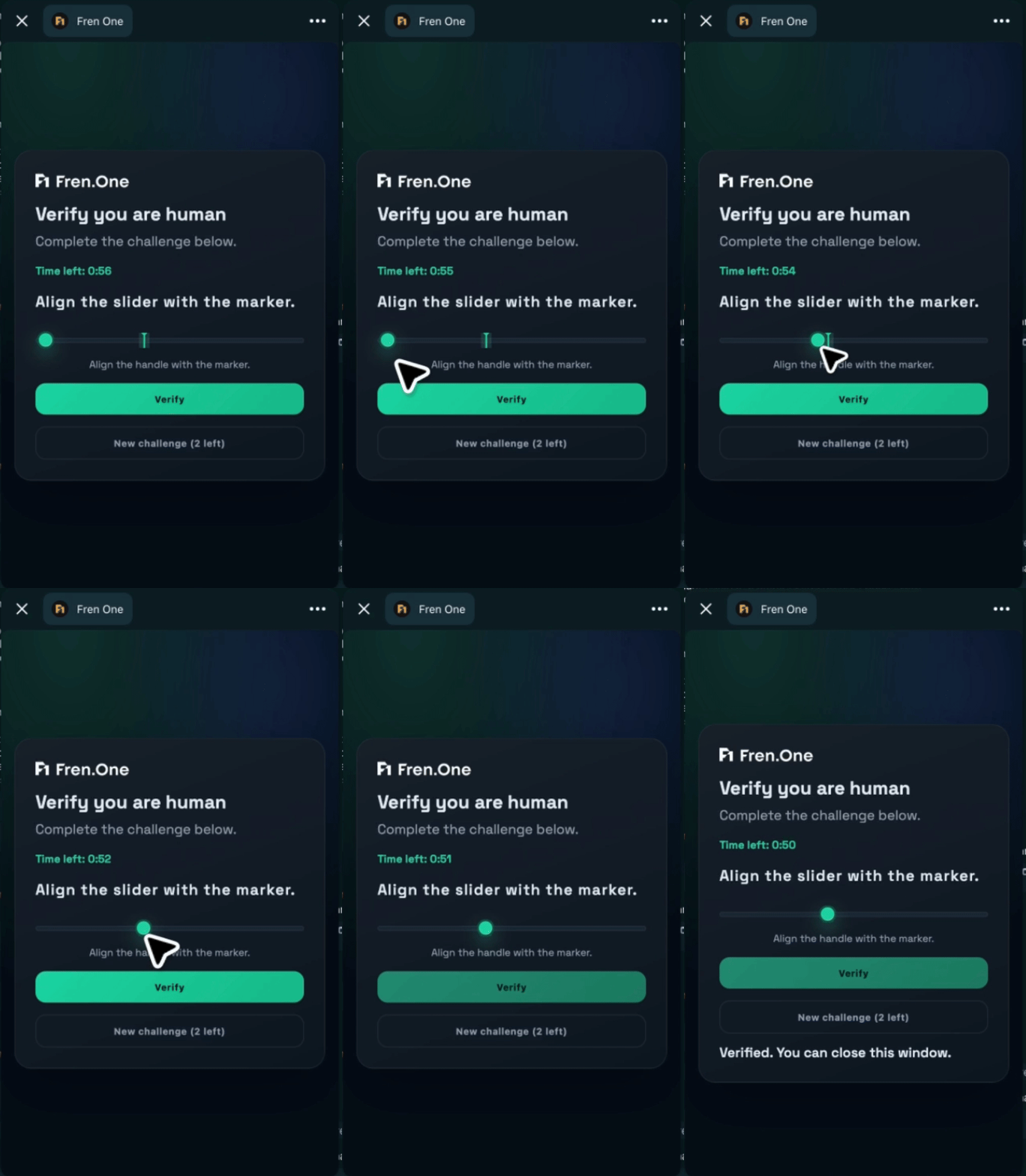
| Slider | Opens the Mini App and completes a slider challenge (align the control with the on-screen marker). |
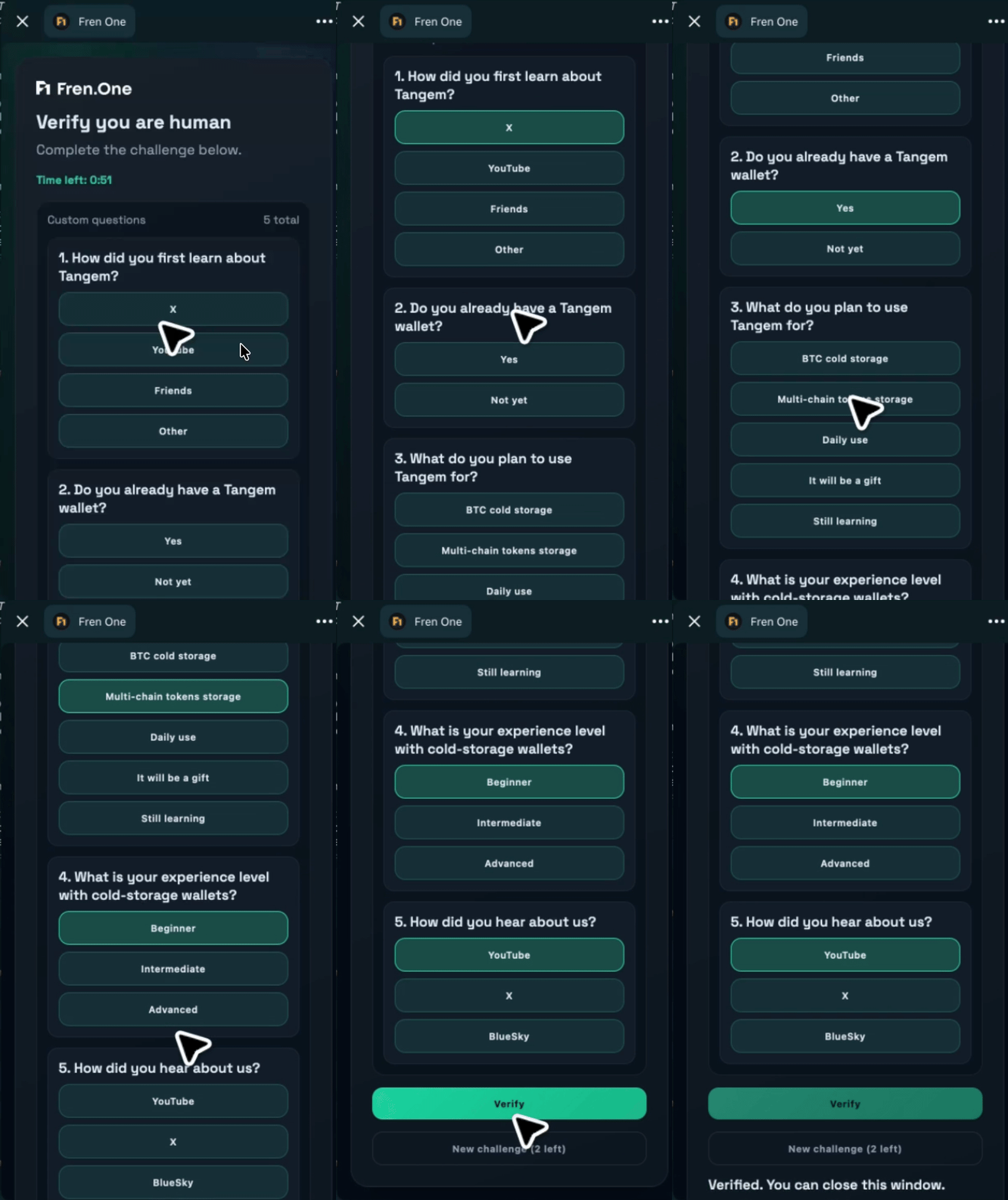
| Custom Mini App | Same Mini App flow, but adds your web-based question flow (questions are managed under Questions, like custom captcha). Often paired with Advanced in Combo mode. |
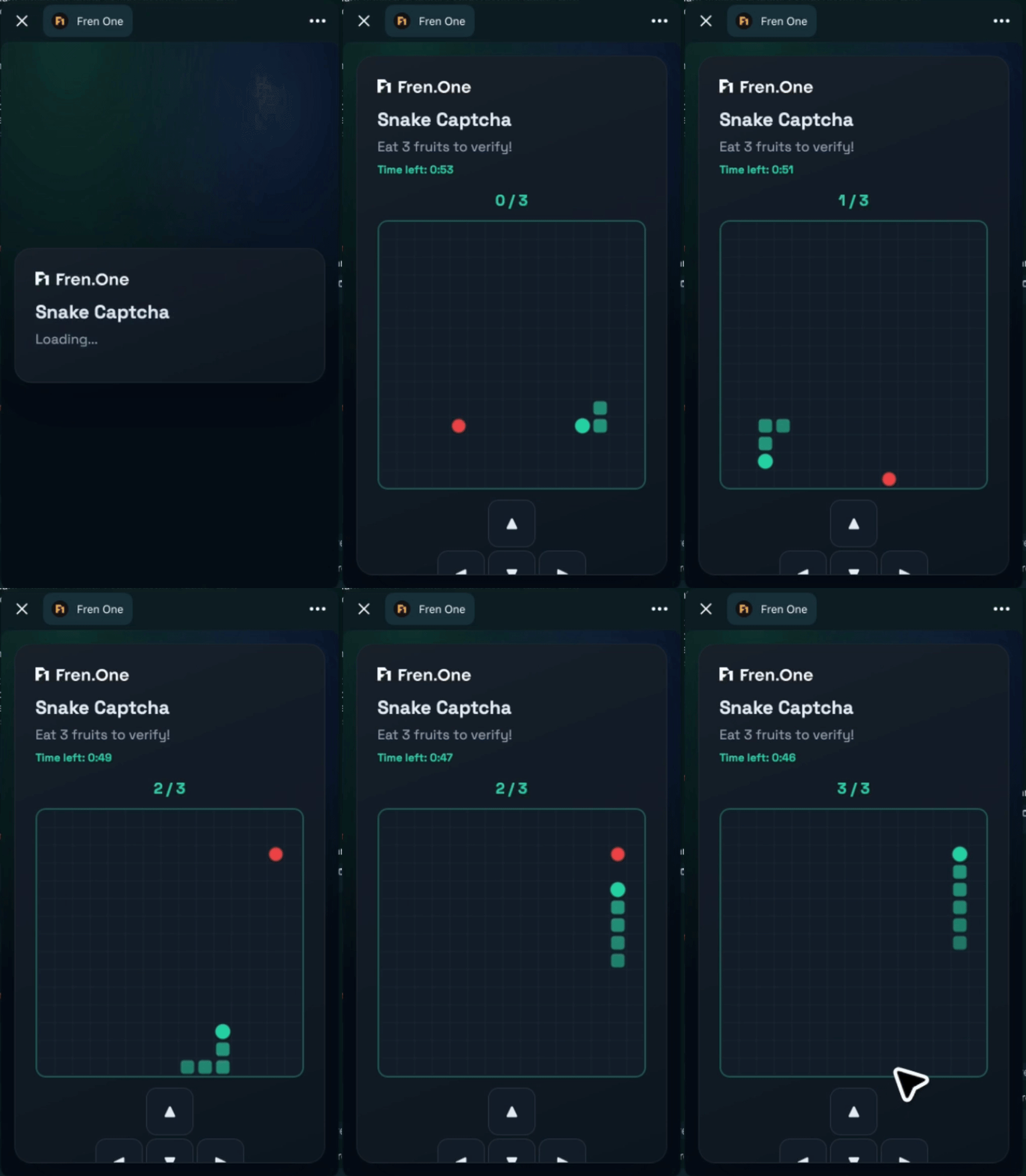
| Snake | Opens a Snake game inside the Mini App. Pass the game to verify. Cannot be used in Combo with anything else. |
Main bot only: Mini App captchas require the official Fren One bot (e.g. @FrenOneBot). If your community uses Bot Customization (your own bot token), the bot blocks selecting Advanced / Custom Web / Snake and tells you to use the main bot for these types.
Use Slider or Slider + Custom MiniApp when you want stronger bot resistance than emoji/math alone. Use Snake for a playful verification that still runs in the Mini App.
Captcha Mode
Define where the captcha will appear:
- Main Chat: Displays the captcha publicly in the group chat.
- Direct Message (DM): Sends the captcha privately to the user.
Direct Message Mode is recommended for Custom Captchas, especially when onboarding involves multiple questions.
Time Limit
Set the maximum amount of time (in seconds) users have to complete the captcha before they are removed from the group.
Default: 60 seconds.
This ensures the verification process is efficient and prevents spammers from lingering in the group.
Questions (Custom Captchas)
Available when Custom (inline) or Custom MiniApp is selected. This feature lets admins create and manage pre-join questions, which can serve various purposes:
-
Custom — questions are sent as normal Telegram messages/buttons.
-
Custom MiniApp — the same question set is driven inside the Mini App (often after the Advanced slider when Combo is enabled).
-
Verification: Challenge users with questions specific to the group or its theme.
-
Statistics: Collect user data for insights (e.g., interests, skills): export the data using
Export Responsesbutton in theQuestionsmenu.
Managing Questions
Creating a Question
- Select "+ Create Question"
- When prompted: "📝 Please send the new question." Write your question in the chat. Add optional images to accompany the question.
- The bot will send another prompt: "📝 Now, add options for this question separated by commas." Define your answers in the chat.
- Specify the correct answer (if applicable) or mark the question as open-ended (There is no correct answer!)
- After the question is created, you can preview it by selecting Preview, or you can go back to the main menu.
New questions need to be selected to be displayed to user, after creation, go back to Captcha menu and select Questions.
Then select questions you want to appear in captchas served to new users.
Editing or Deleting Questions
Use the Questions interface to choose which questions should be used for verification or removal.
Max Attempts
Sets the maximum number of times a user can attempt the captcha before the failure action is triggered.
- Default: Unlimited
- Range: 1+
If a user reaches the maximum number of failed attempts, the configured failure action is applied automatically.
Failure Action
Determines what happens when a user fails the captcha after exhausting all attempts.
- Mute - The user remains in the group but is restricted from sending messages. They can still view the chat. A group admin can unmute the user manually if needed.
- Kick - The user is removed from the group. They can rejoin using the invite link and will be presented with a new captcha.
Best Practices
- Use Simple or Math captchas for basic verification
- Deploy Custom captchas if you want stronger protection against bots or you want to collect information from your new users
- Set appropriate time limits based on captcha complexity
- Use DM Mode for custom questions to avoid cluttering the main chat
- Test captcha flows before deploying to ensure smooth user experience
- Combo mode provides the strongest protection against automated bots
- Monitor completion rates to ensure captchas aren't too difficult
- If you notice that bots manage to automate answering Custom captchas - modify some questions to break their automations
- Adjust time limits if legitimate users are frequently failing
- Consider your community's demographics when choosing captcha types
Troubleshooting
Captcha not appearing for new members?
- Ensure the bot has admin privileges
- Check that the feature is toggled 🟢 Enabled
- Verify the bot can send messages
Users failing captcha verification?
- Check if the time limit is too short
- Verify the captcha difficulty is appropriate for your audience
- Ensure correct answers are properly configured (for Custom captchas)
Bot says Mini App captcha needs @FrenOneBot?
- Your group is on a custom bot token. Mini App captchas only work with the main Fren One bot. Use inline types (Simple, Math, Emoji, Text, Custom) or switch the community back to the main bot for Mini App captchas.