➕ Adding Fren One to Your Community
Get started with Fren One by adding the bot to your Telegram group and granting the necessary permissions for all features to work properly.
Step 1: Add the Bot
- Open Telegram and search for
@FrenOneBotor use the following link to the bot: https://t.me/frenonebot - Start a chat with the bot by clicking "Start"
- Approve admin permissions requested by the bot
- Add to your group by clicking "Add Bot as Admin"
If you have added the bot as a group member without admin privileges:
-
Go to your group settings → "Administrators"
-
Add @FrenOneBot as an administrator
-
Enable these permissions:
- ✅ Delete messages
- ✅ Ban users
- ✅ Invite users via Link
- ✅ Pin messages
-
Click Save or Done to confirm
Step 2: Start Configuring
Once the bot is added with admin permissions:
- Type
/settingsin your group chat - The bot will respond with the configuration menu
- Start setting up features like:
- Onboarding
- Moderation
- Gamification
- AI Features
- And more!
Configuration Options
You can configure Fren One in two ways:
In the Group Chat
- Type
/settingsin the group - Configure settings that apply to that specific group
- All admins can see and modify settings
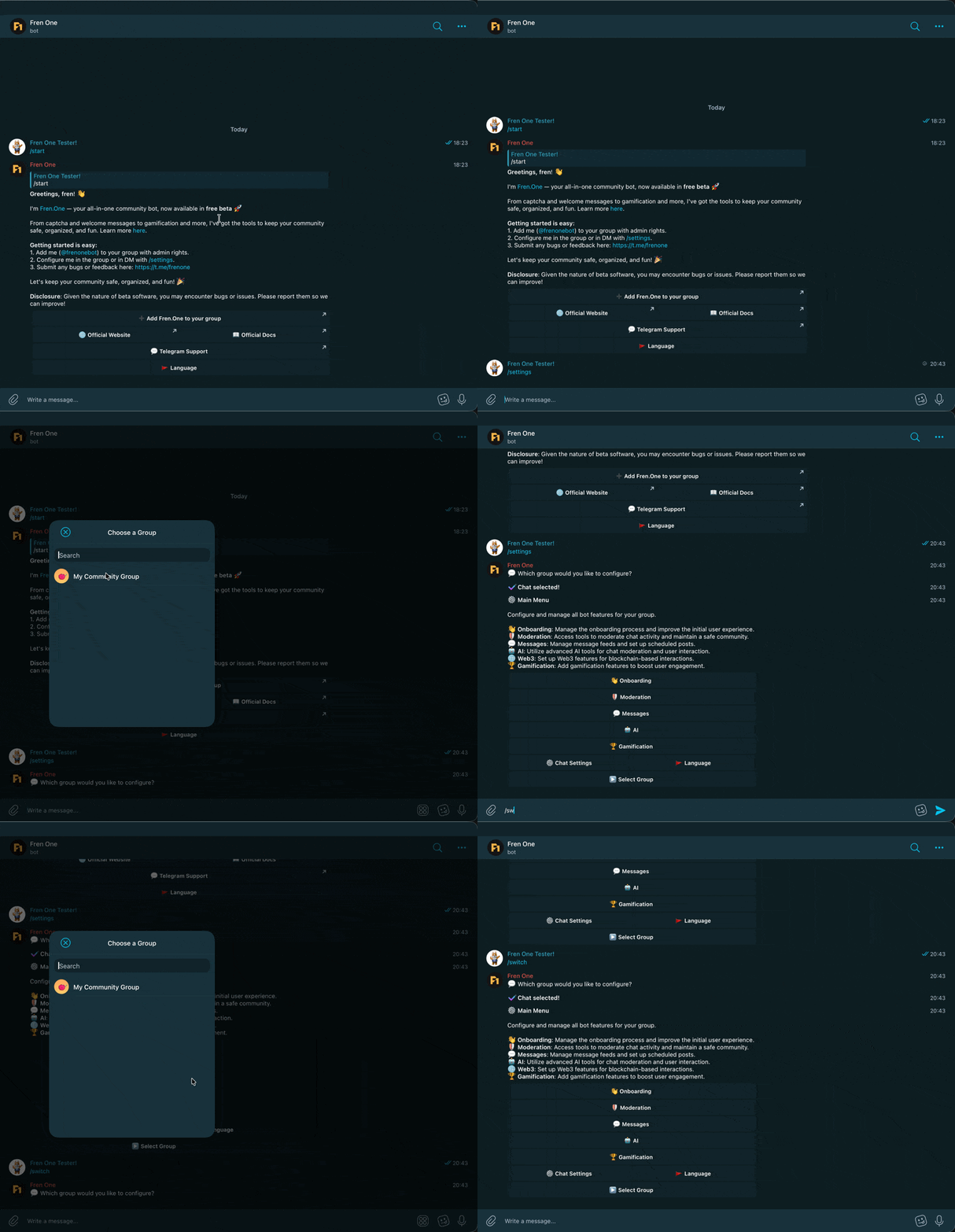
In Direct Message (DM)
- Open a private chat with @FrenOneBot
- Type
/settings - You will be asked to select the group you want to manage. If you want to switch to another group configuration: use
/switchor/setchatto change which community you are configuring when you manage more than one group - Configure settings privately without cluttering the group chat
Verifying Setup
To verify Fren One is properly configured:
- Type
/settingsin your group - Check that the bot responds with a settings menu
- Try a simple command like
/help
Troubleshooting
Bot doesn't respond to /settings:
- Verify the bot is a member of the group
- Check that the bot has admin privileges
- Make sure the bot isn't muted or restricted
Features not working:
- Confirm all required admin permissions are granted
- Check specific feature requirements in their documentation
- Review Chat Settings for any restrictions
Can't add bot to group:
- Verify you have admin permissions in the group
- Check if the group allows bots (some groups restrict this)
- Try using the direct bot link if search doesn't work
Multiple Communities
If you manage multiple Telegram communities, you can:
- Add Fren One to each group separately
- Each group maintains independent settings
- Use
/switchor/setchatin DM to manage all communities from one place - Consider using Custom Bots for tailored look of the Agent
Next Steps
After adding Fren One:
- Set up onboarding - Configure Captcha and Welcome Messages
- Enable moderation - Set up Filters, Triggers, and Word Blacklist
- Add gamification - Enable XP, Roles, and Quizzes
- Configure AI - Activate Spam Detection and Sentiment Moderation
- Explore Web3 - Set up Token Gating if you have a token
Premium Features
Some features like Bot Customization require a premium subscription. Check the Fren One website in the near future for pricing and premium benefits.